

1. Create your team workspace
Creating a workspace sets up your shared Team Brain and your private My Brain in one step.1
Sign up
Head to app.supermemory.ai and create an account.
2
Choose Team
On the About step, switch from Personal to Team.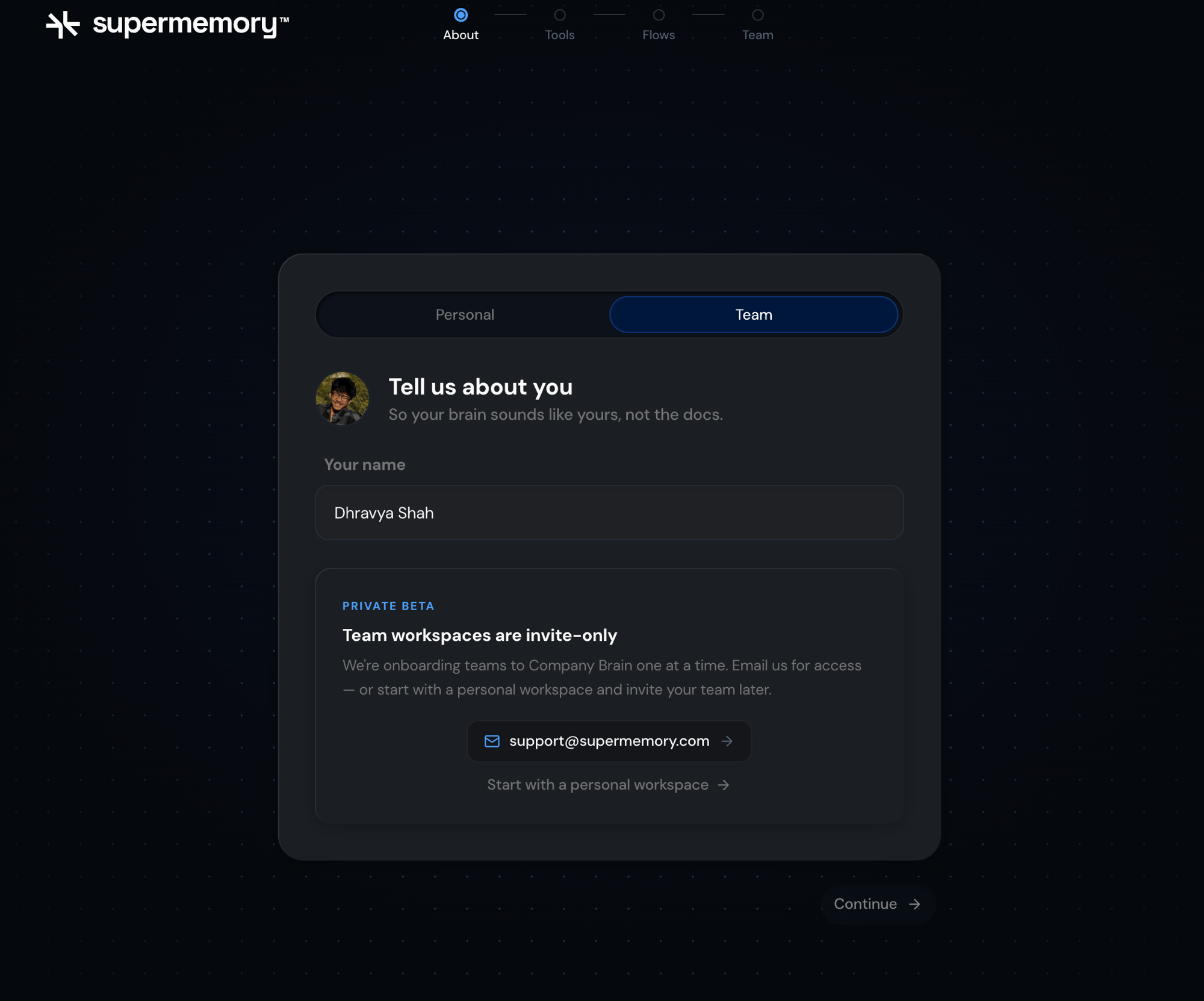
Team workspaces are invite-only during the private beta. Not invited yet? Email support@supermemory.com, or start Personal and invite your team once you’re in.
3
Add your company domain and confirm
Enter your domain (for example 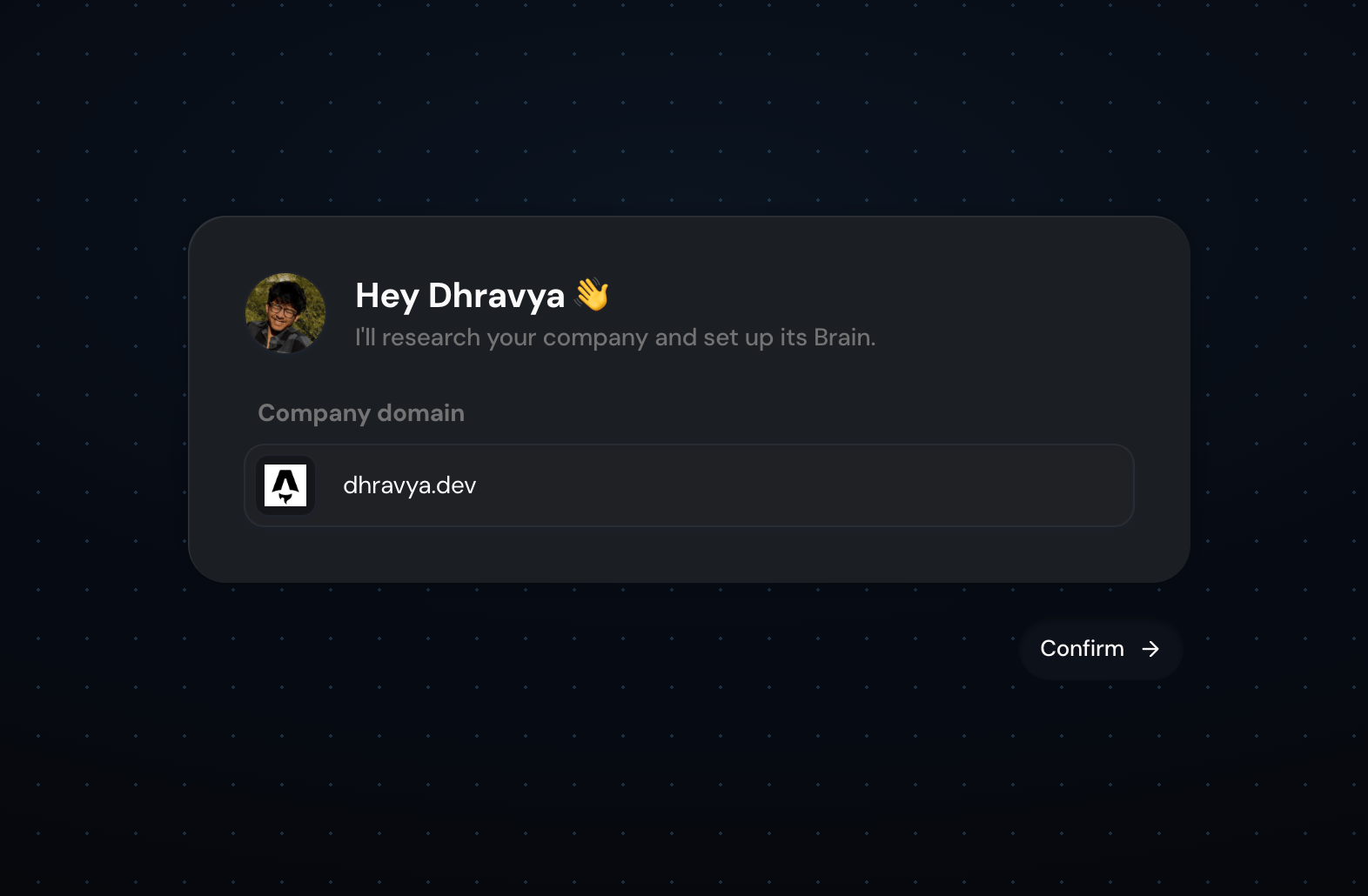
acme.com) and confirm. Supermemory researches the company from there and seeds a starting profile, before any source finishes syncing.4
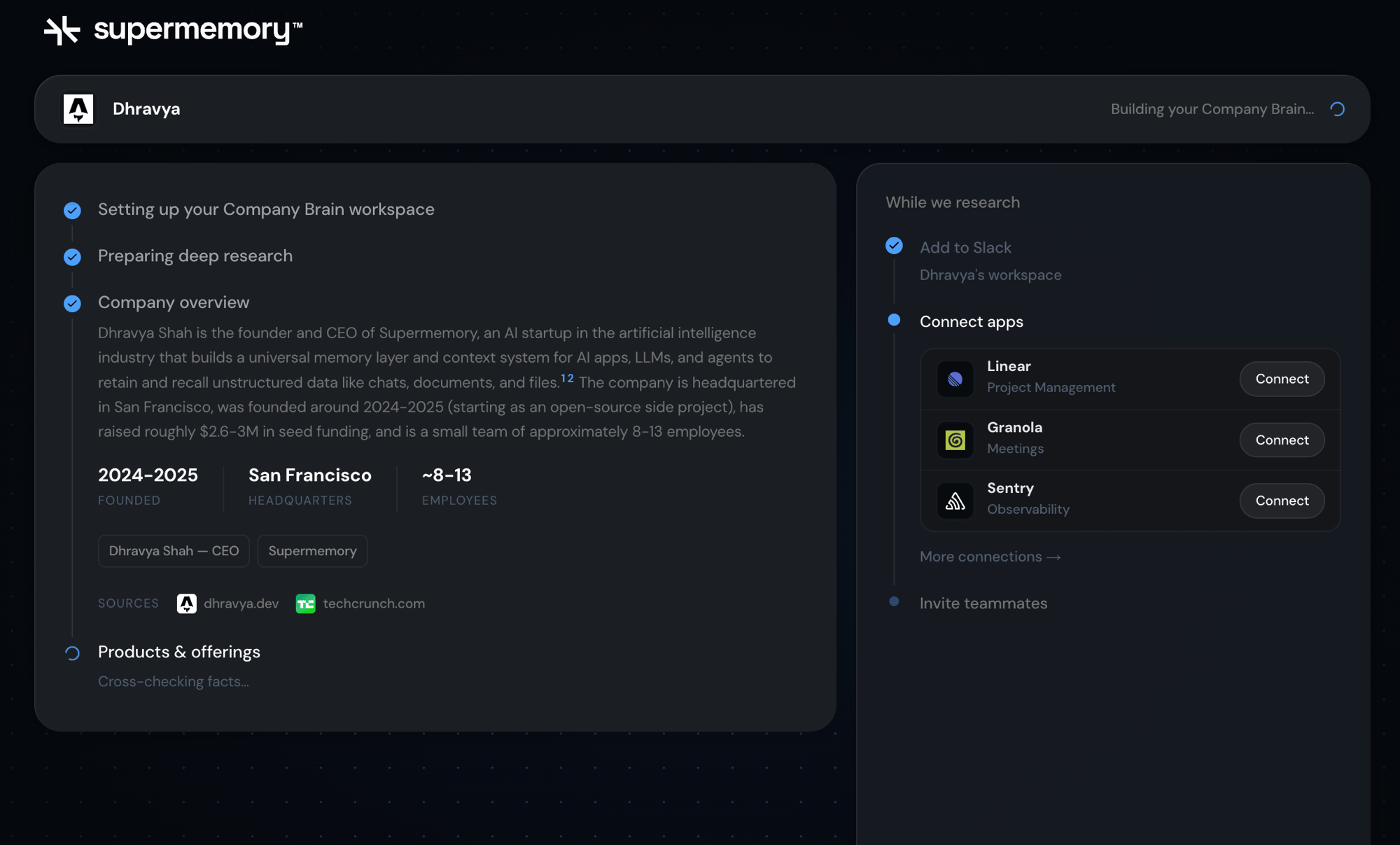
Add to Slack, connect apps, and invite your team
All three run in parallel with research, and none of them block it:
- Add to Slack — kicks off the install flow below.
- Connect apps — Linear, Granola, Sentry, and more.
-
Invite teammates — now, not later. No per-seat pricing, so invite everyone in your Slack.
5
You're ready
Supermemory’s already learned a real amount about your company by the time research finishes. Watch Slack for a DM from it walking you through what it can do.
Try it: ask
What does {your company} do? — you should get a real answer from the seeded profile.2. Install into Slack (admin)
Don't have a Slack workspace yet?
Don't have a Slack workspace yet?
Go to app.slack.com to create one first — Company Brain installs into an existing workspace, it doesn’t create one for you.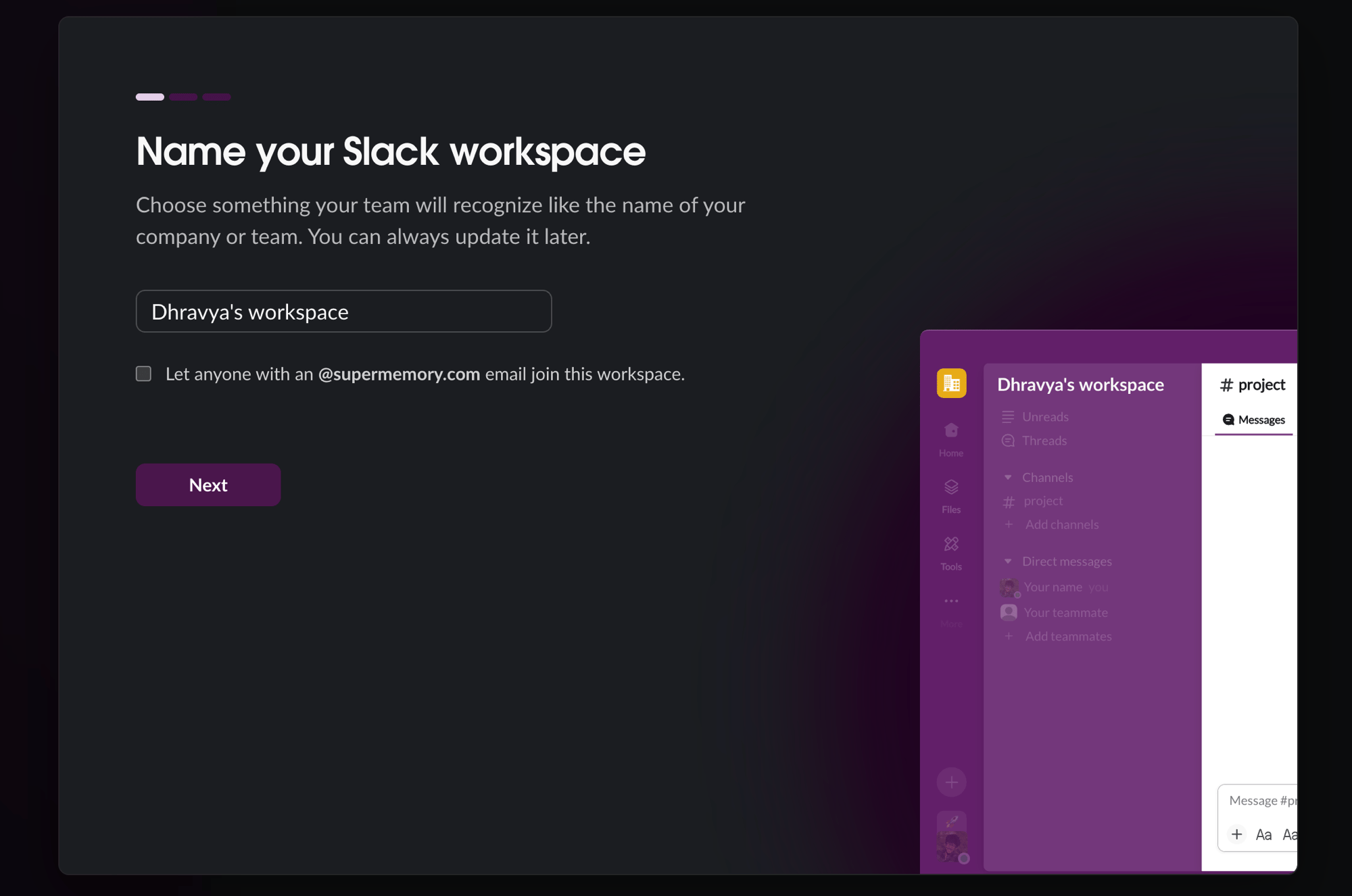
1
Confirm company and domain
Click Install to Slack. Not an admin? This triggers Slack’s own request-to-install flow instead.
2
Confirm a reassignment, if prompted
If the Slack workspace is already linked to another Supermemory organization, the admin who started the install sees a warning before Supermemory changes the connection. The warning names the Slack workspace and the active target organization, explains what future Company Brain activity will move, and requires the admin to type the workspace name or
OVERRIDE.Slack authorization has already happened at this point, so Slack may have refreshed or invalidated the prior credentials. Until confirmation, Supermemory does not reassign its workspace mapping. Cancelling the request or letting its 15-minute confirmation window expire also leaves that Supermemory mapping unchanged, but it does not guarantee the prior Slack connection still works. Restart the install from Slack to recover or try again.3
Hand off to Slack
The web app hands off immediately — “we’ve DM’d you in Slack.”
4
Home channel
The agent creates
#company-brain, posts an intro there, and announces itself once in #general.5
Approve channels to read
You approve each channel with a tap — it never joins one silently.
6
Add your team
Invite people with a picker, a workspace-wide toggle, or email.
Greeting new teammates
What member join looks like from a new hire’s side.
The permissions graph
What each person can see once they’re in.